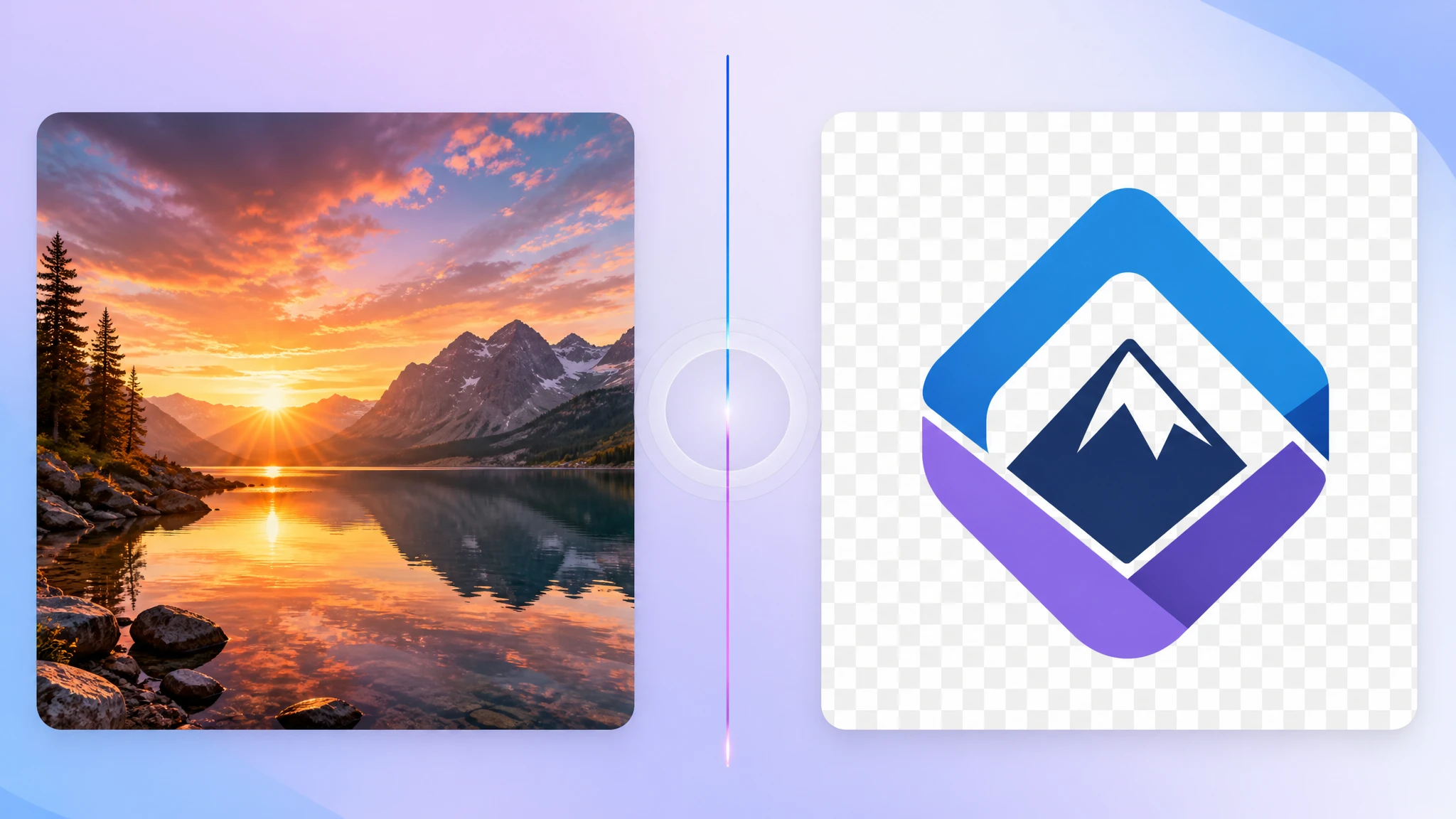
A transparent background is one of those small details that makes a logo look professional everywhere. Slap a logo with a white box on a dark hero image and it screams amateur. Use a true transparent PNG and the same logo just floats. This guide explains exactly how transparency works in PNG, how to create transparent images, and which format to use in 2026.
What "Transparent PNG" Actually Means
PNG supports an extra channel beyond red, green, and blue: the alpha channel. Every pixel has a value from 0 (fully transparent) to 255 (fully opaque). That gives you smooth fades, soft drop shadows, and crisp edges over any background.
A common confusion: there is no such thing as "JPG with transparency." JPG cannot do transparency. If your image needs to float on a non-white background, it has to be PNG, WebP, or AVIF — never JPG.
When You Need a Transparent Background
- Logos placed on different background colors or photos
- Icons in UI components
- Product cutouts for e-commerce
- Stickers and overlays
- Signatures and stamps in document workflows
- Composite design work where layers stack
Three Ways to Get a Transparent PNG
1. Export from a Design Tool
This is the cleanest path. In Figma, Sketch, Adobe Illustrator, or Affinity Designer, simply hide the background layer and export as PNG. The exported file will have transparent pixels everywhere the canvas is empty.
Tip: in Photoshop, make sure the bottom layer is not "Background" (locked). Convert it to a regular layer first, then delete or hide it.
2. Remove an Existing Background
If you have a JPG and need to make the background transparent, you have two options:
- Manual: open in any editor (GIMP, Photoshop, Affinity), use the magic wand or pen tool to select the background, delete it, and save as PNG.
- Automatic: use AI background-removal services. Quality is good for portraits and clean-edged products; less reliable for hair and fur.
3. Convert a Format that Supports Transparency
If you already have a transparent WebP or HEIC, our JPG → PNG tool can also handle PNG → PNG re-encoding. The simplest path: keep your master in a format that supports alpha (PNG/WebP/AVIF) and export to whichever variant the destination needs.
The Right Way to Save a Transparent PNG
Two PNG variants you'll see:
- PNG-8: 256-color palette + 1-bit transparency. Edges look jagged on rounded shapes. Good for very simple icons; small file size.
- PNG-24 (with alpha): millions of colors and full alpha channel. This is what you want for almost every modern use. Slightly larger file but smooth edges.
Most modern tools default to PNG-24 with alpha. If your edges look pixelated, you probably exported as PNG-8.
Common Mistakes
- Saving as JPG. JPG flattens transparent pixels to white. Always PNG, WebP, or AVIF for transparency.
- "Halo" outlines. When the original image was anti-aliased on a white background, removing the white leaves faint edges. Re-export from the source if possible.
- Forgetting to disable the background in the design file before exporting.
- Resizing PNG too aggressively. If you resize down then back up, transparency edges get messy. Use our resize tool at the largest size you need first.
Should You Still Use PNG in 2026?
Yes — but pair it with WebP. WebP supports transparency too, and the same image as transparent WebP is typically much smaller than PNG. Use the <picture> element to serve WebP first and fall back to PNG:
<picture>
  <source srcset="/logo.webp" type="image/webp">
  <img src="/24picture/logo.png" alt="Brand logo" width="200" height="60">
</picture>
For maximum compression, AVIF also supports transparency. Add it as the first <source> if your audience uses modern browsers.
Quick Workflow
- Create or open the image in a design tool with the background hidden.
- Export as PNG-24 with alpha.
- Optimize with our image compressor — typically saves substantial space with no visible change.
- Generate a WebP copy with our PNG → WebP tool.
- Serve both via
<picture>on your site.
Pro tip: keep a master PNG with alpha in your project repo. From it you can generate WebP, AVIF, smaller JPG previews, and any size variant. Lossy formats are lossy — once you throw away the alpha, you can't get it back.
Conclusion
Transparent PNG is still the universal standard for logos and graphics in 2026. Make sure you export with the alpha channel, optimize the file, and pair it with a WebP version for the web. Your visuals will land beautifully on any background, on any device.
Need to convert something now? Try our JPG → PNG tool or PNG → WebP tool — both run in your browser without uploading.