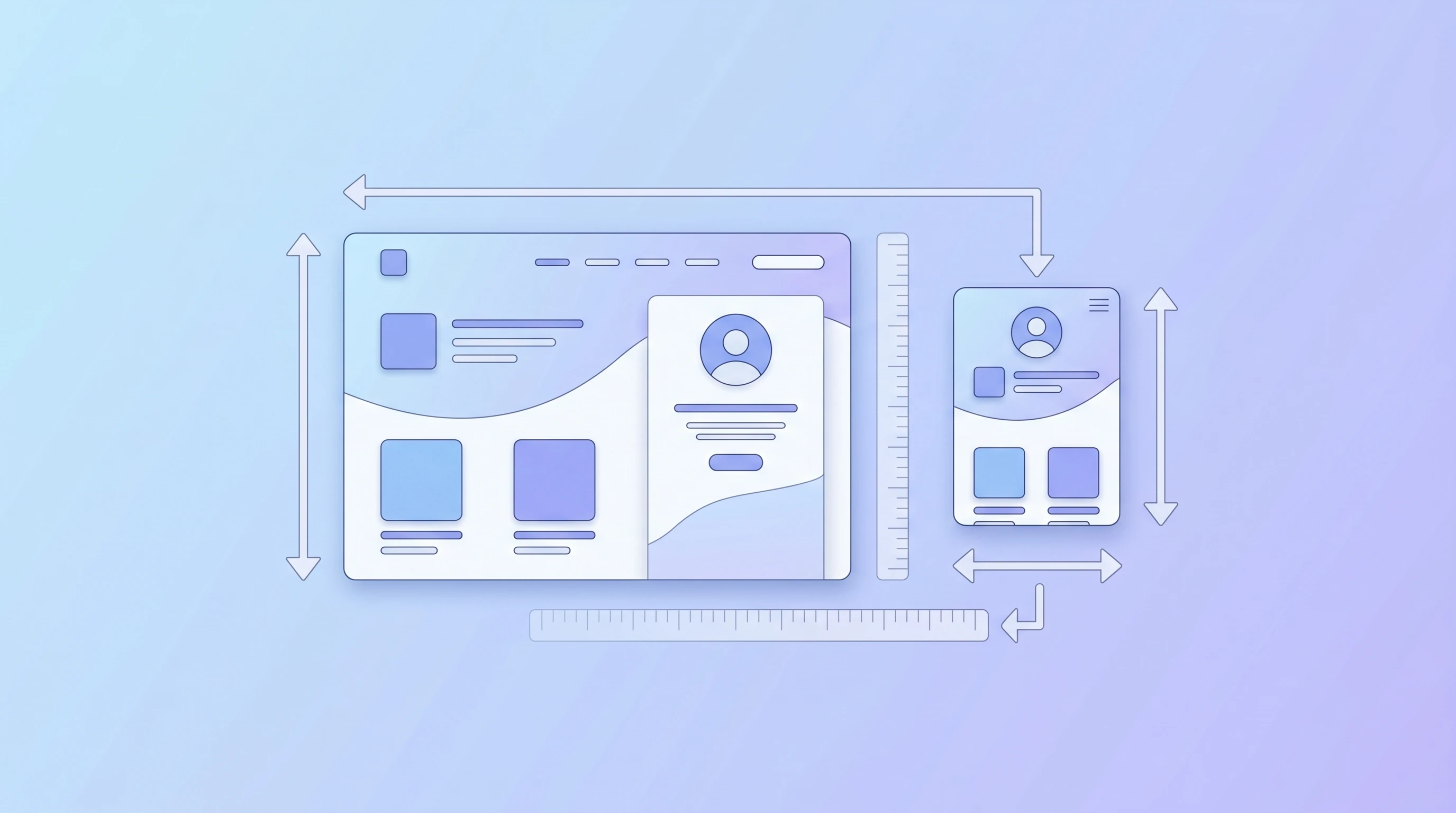
Image Resizing Best Practices for Web & Social Media
Learn how to choose the right dimensions for websites and social platforms without hurting quality or performance.
Read MoreResize JPG, PNG, and WebP images with exact width and height controls, aspect-ratio lock, and quick presets.
or click to browse files
Set exact width and height values in pixels so every export fits your layout requirements.
Apply popular social media and screen sizes with a single click to speed up repetitive tasks.
Resize images locally in your browser. Your files never leave your device.
Downscaling usually keeps images sharp while reducing file size. Upscaling can make images softer because the browser must create new pixels.
When you enlarge an image beyond its original dimensions, the browser interpolates missing detail. This is normal and can reduce visible sharpness.
You can resize JPG, PNG, and WebP images up to 10MB each directly in your browser.
Common starting points include 1080×1080 for Instagram posts, 1200×630 for Facebook sharing, and 1500×500 for Twitter headers.
Yes. Add multiple files and apply the same target size to the whole batch in one run.
Learn how to choose the right dimensions for websites and social platforms without hurting quality or performance.
Read More
See how choosing the right image format and dimensions can improve load time and visual quality together.
Read More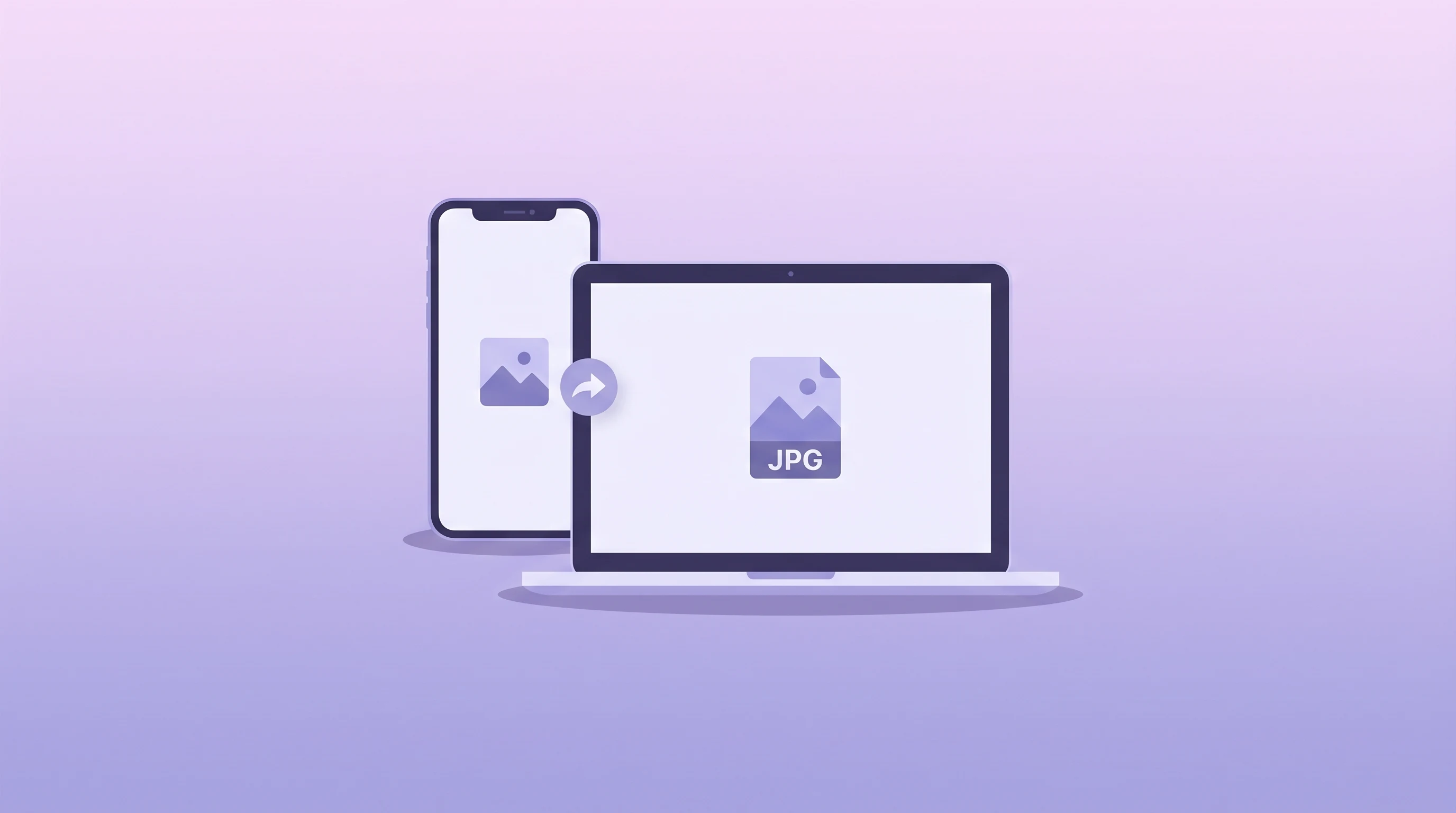
Understand how image dimensions, file formats, and compatibility affect sharing photos across devices and platforms.
Read More