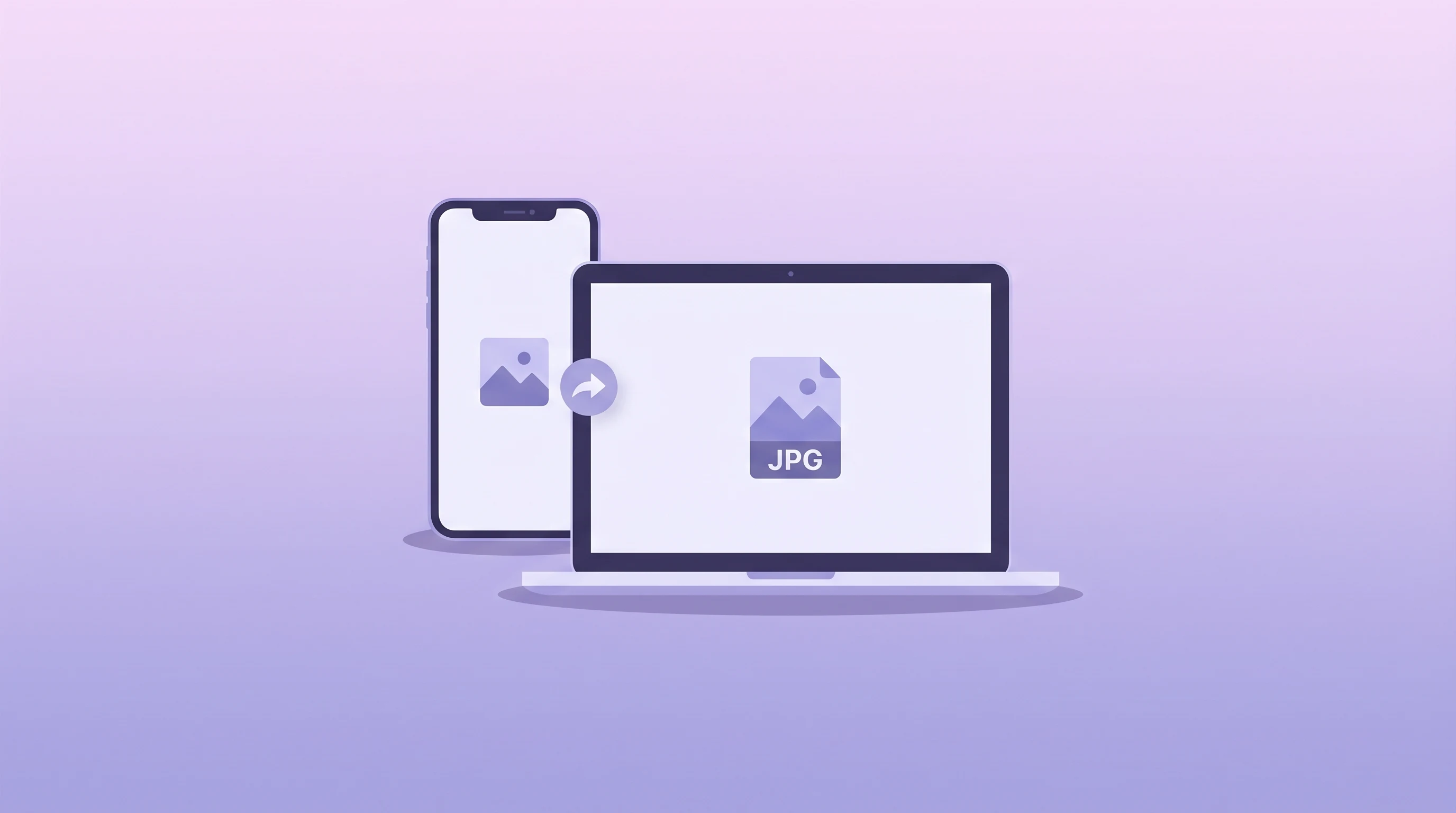
If you use an iPhone, you've probably seen photo files ending in .heic instead of the more familiar .jpg. For many users, that moment usually comes with confusion: Why won't this image open in my Windows app? Why can't I upload it to a certain website? Why did Apple switch formats in the first place?
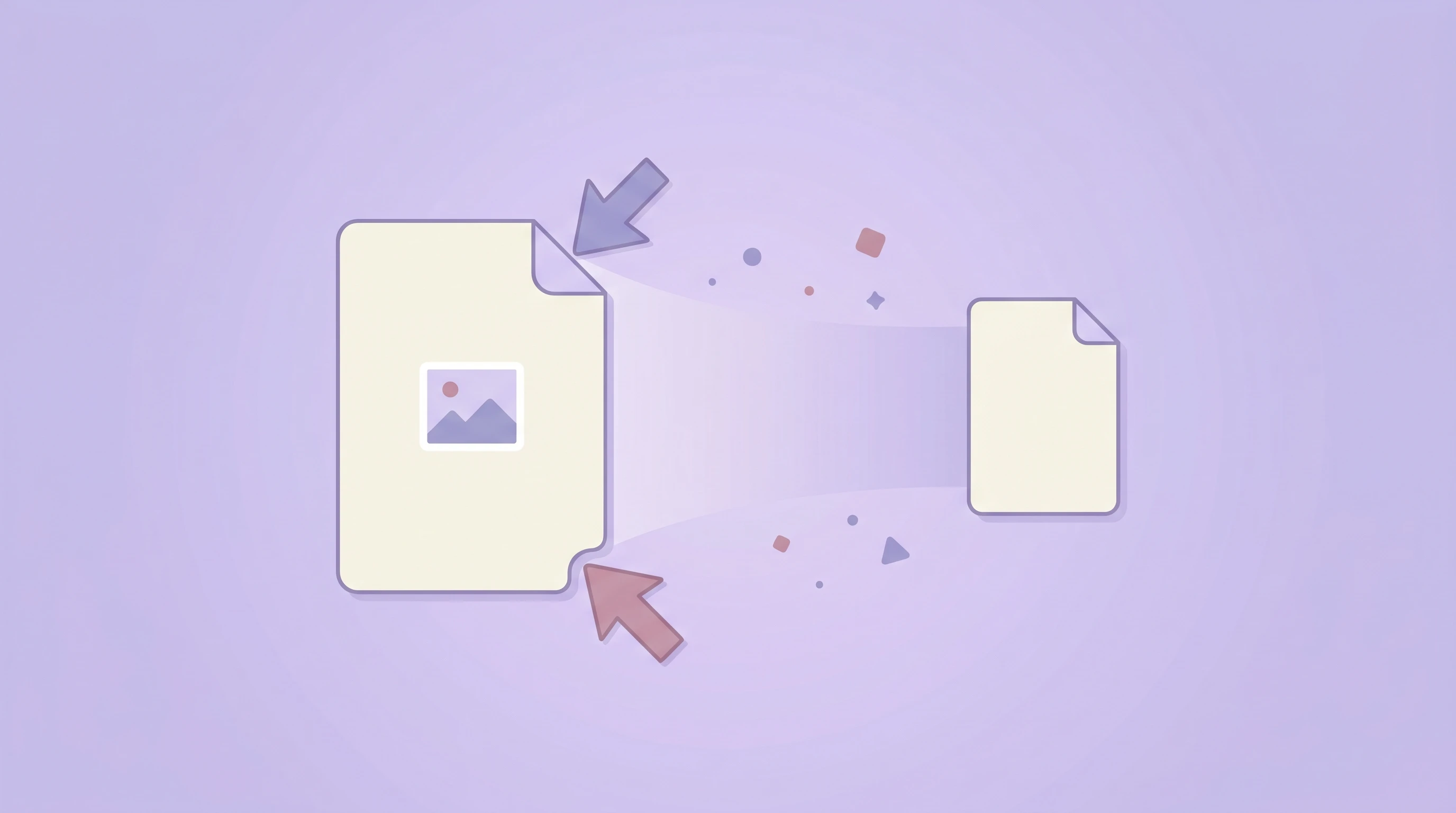
The short answer is that HEIC is more efficient, while JPG is more universal. Apple adopted HEIC because it stores excellent image quality in a smaller file size. But smaller files do not always mean fewer problems. If you need maximum compatibility for sharing, editing, uploading, or archiving, JPG is still the safer format in many everyday situations. That's exactly why tools like our HEIC to JPG converter remain useful in 2026.
What is HEIC, and why does Apple use it?
HEIC stands for High Efficiency Image Container. It is Apple's implementation of the HEIF standard, which was introduced to store images more efficiently than older formats like JPG. Apple made HEIC the default photo format on iPhone and iPad starting around the iOS 11 era, shortly after the HEIF standard gained momentum.
The reason is simple: modern phone cameras create increasingly detailed photos. A more efficient format helps users save storage space without sacrificing visible quality.
- Smaller file size than JPG for similar visual quality
- Better compression efficiency for modern mobile photography
- Support for advanced data such as sequences, depth, and metadata
- Better fit for Apple’s ecosystem and newer hardware
In other words, HEIC exists because phones needed something smarter than a 1990s web standard.
What is JPG, and why is it still everywhere?
JPG, or JPEG, is one of the most widely supported image formats in the world. Almost every browser, operating system, CMS, design tool, printer workflow, and upload form can handle it. That universal support is why JPG continues to dominate despite being less storage-efficient than HEIC.
JPG remains a default choice when compatibility matters more than technical elegance. If you're emailing photos, inserting images into office documents, uploading to older platforms, or sharing with people using mixed devices, JPG is usually the lowest-friction option.
HEIC vs JPG: the real trade-offs
There is no single "best" format for every case. The better question is: what do you need right now?
HEIC advantages
- Smaller files at high visual quality
- More efficient for phone storage
- Modern structure for extra image data
- Great when you stay inside Apple workflows
JPG advantages
- Near-universal support across devices and apps
- Easier uploading to websites and legacy tools
- More predictable for clients, coworkers, and non-Apple users
- Simpler for quick sharing, editing, and publishing
That means HEIC wins on efficiency, while JPG wins on compatibility. For many people, the pain point is not quality — it is whether the file opens correctly at the exact moment they need it.
When should you convert HEIC to JPG?
Not every HEIC file needs conversion. But there are several common scenarios where converting makes sense immediately:
- Uploading to websites that reject HEIC or fail to preview it correctly
- Sending files to Windows users who may not have HEIC support installed
- Opening photos in older software such as legacy editors or DAM tools
- Using images in presentations or office documents where JPG works more reliably
- Preparing client deliverables in a format everyone can open without extra steps
If your goal is “make this photo work everywhere,” JPG is still the practical answer.
Will converting HEIC to JPG reduce quality?
Technically, yes — but usually not in a way most people will notice. HEIC and JPG are both compressed formats, and JPG is traditionally considered lossy. However, a high-quality conversion keeps visual differences very small for ordinary viewing, sharing, and web usage.
The bigger difference is usually file behavior, not image appearance. After conversion, the photo is easier to use across services, devices, and applications. For most users, that improvement in compatibility is worth far more than the tiny theoretical loss in fidelity.
If you are editing for professional retouching or long-term archival, keep the original HEIC file too. Use JPG as the distribution format, not necessarily the only copy.
How to convert HEIC to JPG online
The easiest approach is a browser-based converter that works locally. With our HEIC to JPG tool, you can drag in iPhone photos, convert them in the browser, and download the finished JPG files without sending private images to a server.
This approach has several benefits:
- Privacy — your photos stay on your device
- Speed — no upload wait for small and medium files
- Convenience — no app install required
- Cross-device access — works in a modern browser
If you're regularly moving images from iPhone to Windows, web dashboards, marketplaces, or team chats, online conversion is often the fastest workflow.
Should you keep HEIC or switch everything to JPG?
For most users, the best answer is both. Keep HEIC on your phone to save storage and benefit from Apple's modern photo pipeline. Convert to JPG whenever you need broad compatibility.
That hybrid workflow gives you the best of both worlds:
- Efficient storage on Apple devices
- Easy sharing with anyone else
- Reliable uploads to the web
- Fewer surprises in cross-platform projects
Final thoughts
HEIC is not a bad format. In fact, it is technically smarter than JPG in several important ways. But the internet still runs on compatibility. When you need a photo that opens anywhere, uploads everywhere, and causes fewer workflow problems, JPG is still the dependable choice.
If you have HEIC images from your iPhone and need a faster way to share or publish them, try our free HEIC to JPG converter. It is private, browser-based, and built for exactly this problem.