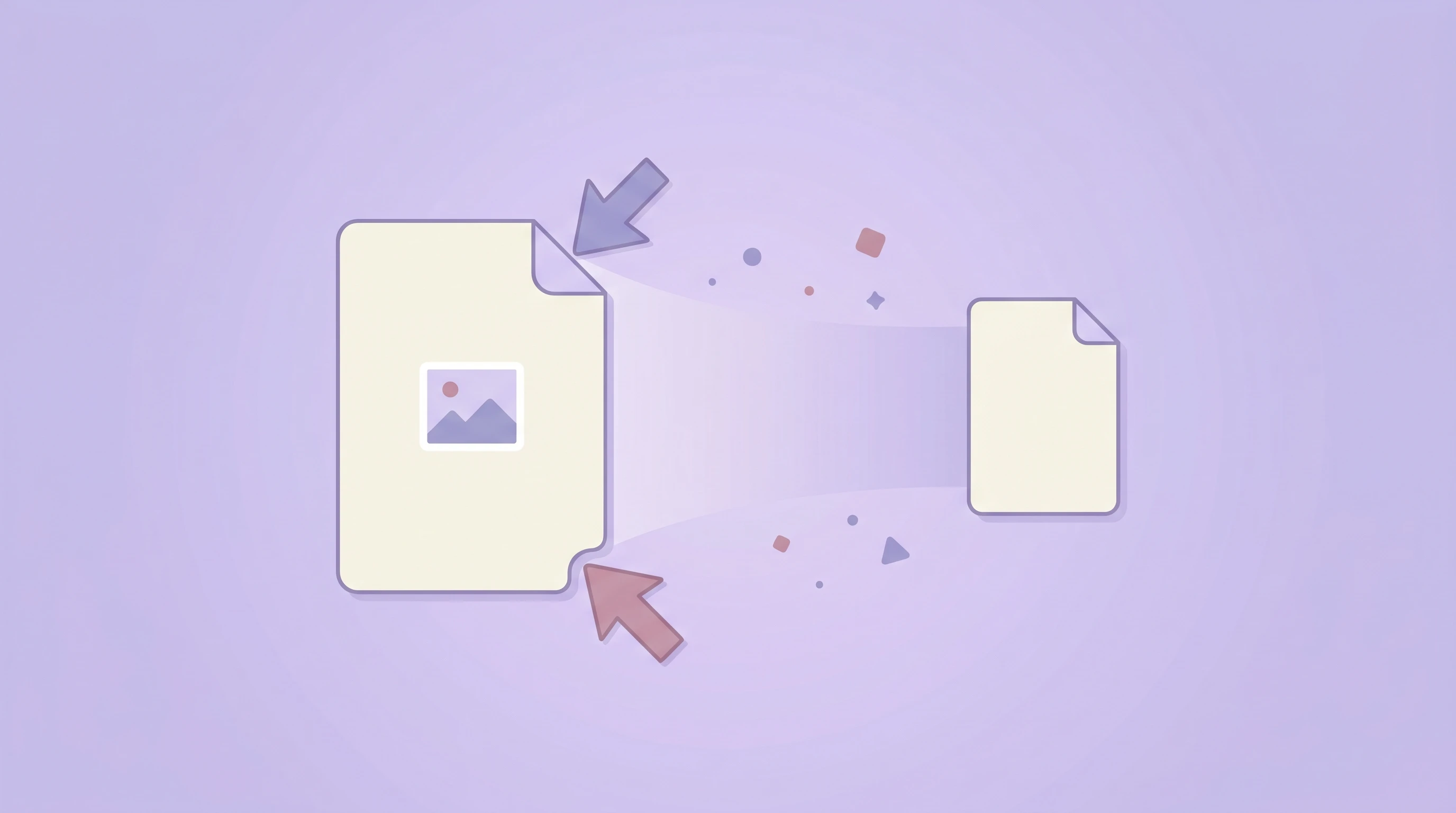
Image Compression: Reduce File Size Without Losing Quality
Learn how image compression works, when to use lossy or lossless settings, and how to improve page speed safely.
Read MoreCompress JPG, PNG, and WebP images with an adjustable quality slider. Reduce file size privately in your browser.
or click to browse files
Compress multiple images quickly in your browser without waiting for uploads.
All processing happens locally on your device, so your files stay private.
Adjust the quality slider to balance file size and visual quality for each workflow.
Lossy compression removes some image data to create a smaller file, while lossless compression keeps all original data. JPG and WebP often benefit most from a quality slider, while PNG usually stays lossless.
PNG is designed for lossless quality, so the browser quality parameter does not affect it. PNG compression gains are usually smaller unless metadata is removed or the image is converted to another format like WebP.
The quality slider controls JPEG and WebP re-encoding quality. Lower values usually create smaller files, while higher values preserve more detail.
For most web images, 70% to 85% is a strong starting point. It usually reduces size noticeably while keeping the image visually sharp.
You can add multiple files in one session. Very large batches depend on your device memory and CPU, since everything runs inside your browser.
Learn how image compression works, when to use lossy or lossless settings, and how to improve page speed safely.
Read More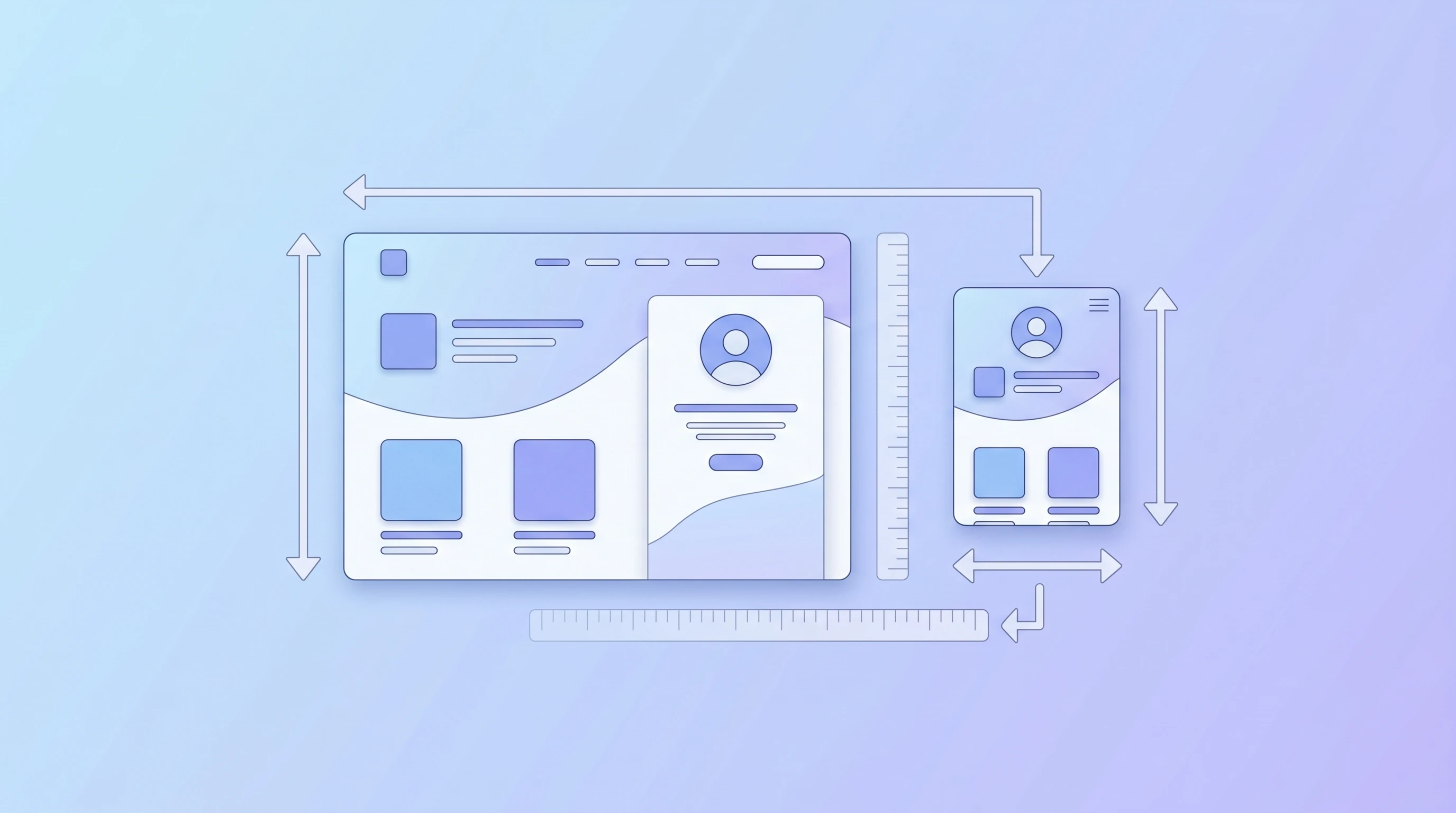
Resize first, then compress — learn how to combine both techniques for the fastest possible page loads.
Read More
Switching to WebP can cut file sizes by 25-35% on top of compression — learn when it makes sense.
Read More