How to Create Animated GIFs: The Complete Guide
Everything you need to know about GIF creation — from frame selection to optimization.
Read MoreUpload multiple images, set frame speed and loop count, preview the animation, and download your GIF — all in your browser, no server upload needed.
JPG, PNG, WebP • Multiple images • Max 10 MB each
Upload as many images as you want. Drag to reorder frames. Remove individual frames with one click.
Adjust frame delay, quality, loop count, and output size. Preview the animation before creating the final GIF.
Your images never leave your browser. All GIF encoding happens locally — no uploads, no servers, no tracking.
You can add as many frames as you like. However, more frames means a larger file size. For smooth animations, 10-30 frames work well. For simple slideshows, 3-10 frames are ideal.
JPG, PNG, and WebP images are supported. You can mix different formats — the tool will handle the conversion automatically.
Yes! Click and drag frames in the frame strip to rearrange them in any order. You can also remove individual frames by clicking the X button.
The quality setting (1-20) controls the color accuracy. Lower values produce better quality but larger files. A value of 10 offers a good balance between quality and file size.
You can create GIFs at the original image resolution or scale down to 480px, 320px, or 240px width. Smaller sizes produce much smaller file sizes and are better for web use.
Everything you need to know about GIF creation — from frame selection to optimization.
Read More
Discover why WebP delivers smaller files while maintaining the same visual quality.
Read More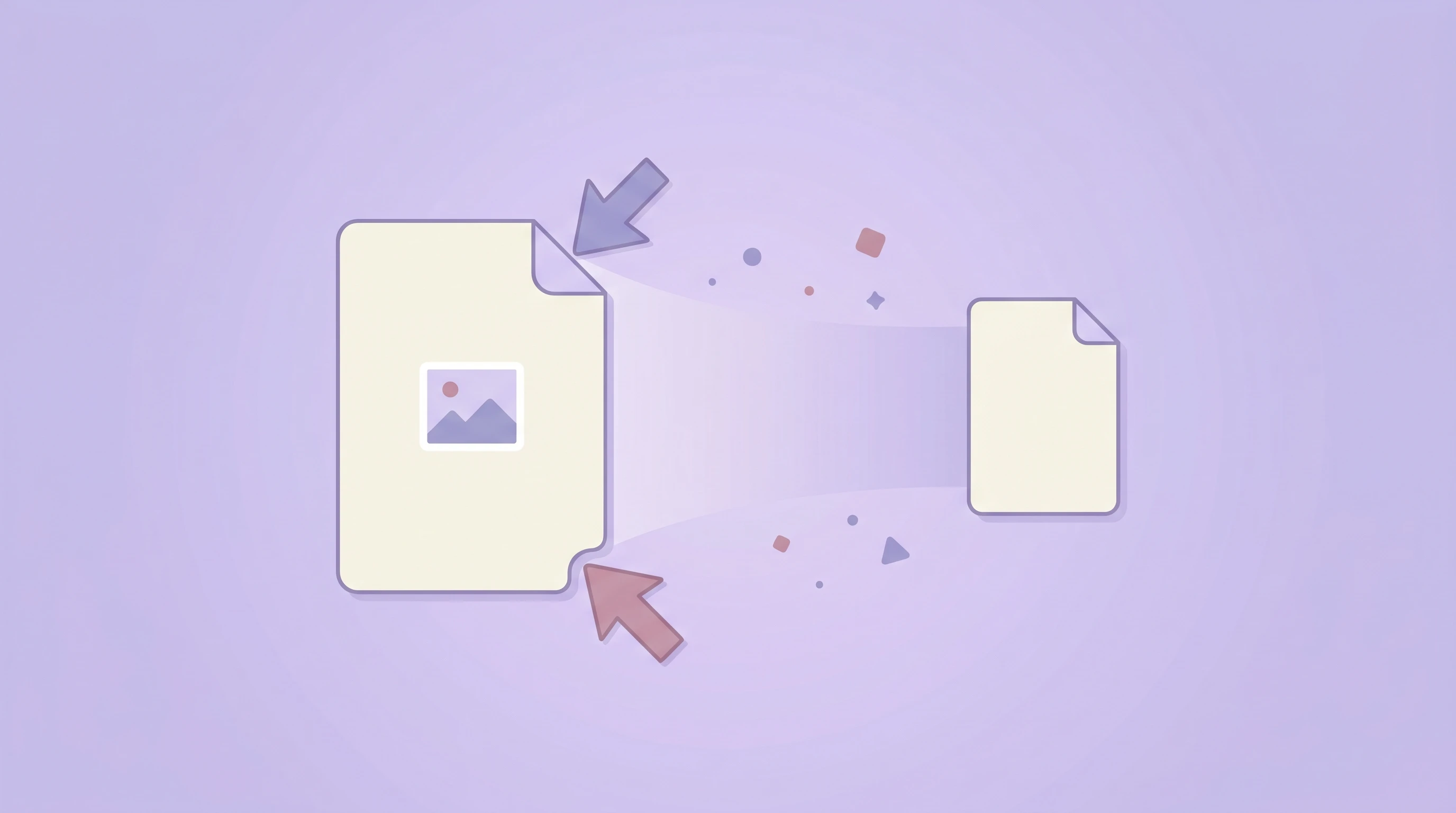
Master image compression techniques to speed up your website.
Read More