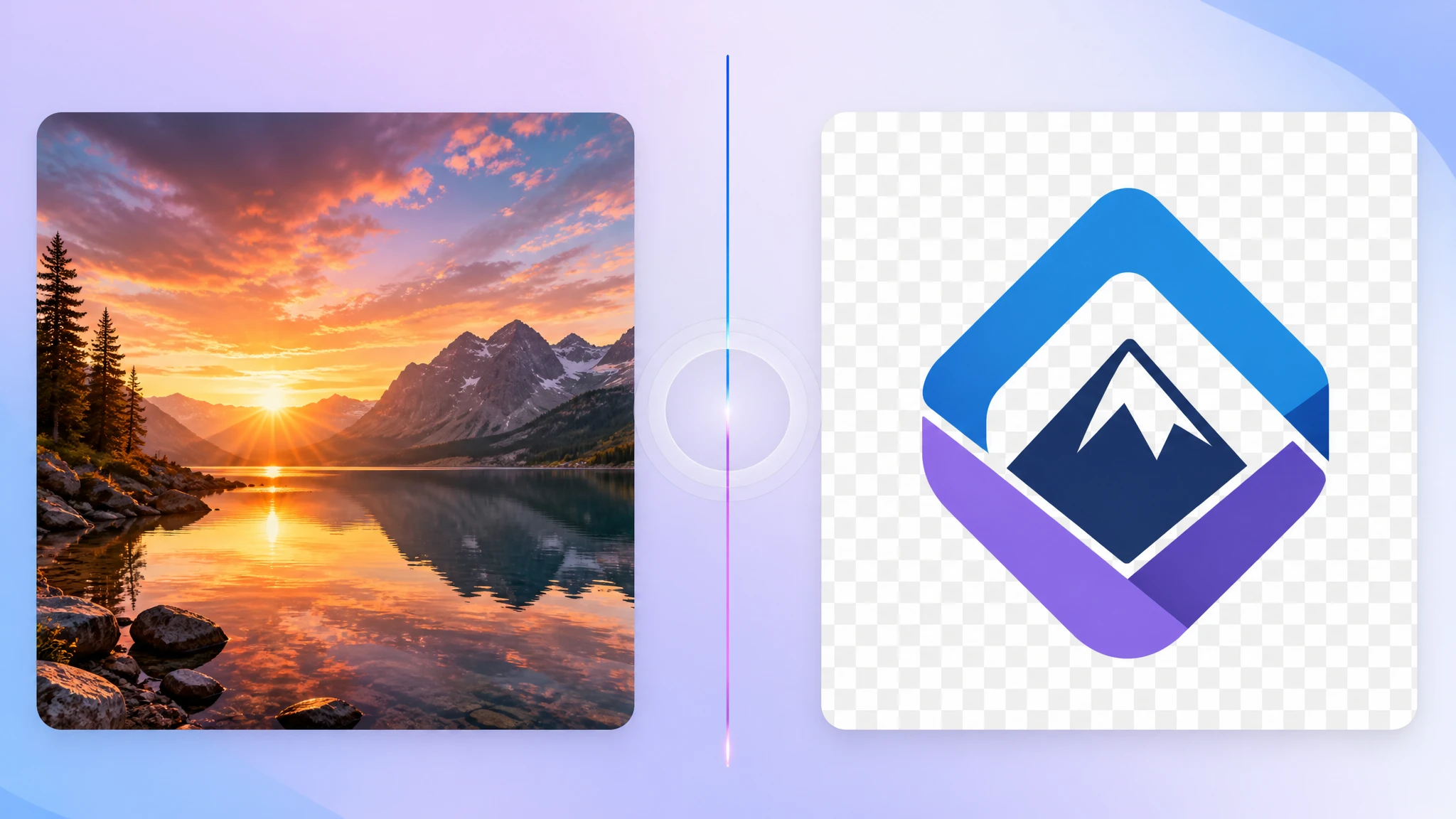
SVG is a powerful format for scalable graphics. It is resolution-independent, lightweight, and great for logos, icons, charts, and illustrations on the web. But not every tool, platform, or workflow supports SVG. When you need a fixed-size image that works everywhere, converting SVG to PNG is the most common solution.
Our SVG to PNG converter renders your vector files into high-quality raster images directly in the browser, with no upload required.
Why convert SVG to PNG?
The main reason is compatibility. SVG is a vector format based on XML code. Many apps, upload forms, messaging tools, and content management systems expect a raster image like PNG instead.
- Broader compatibility — PNG works in apps, docs, and platforms that reject SVG
- Predictable rendering — no font, CSS, or rendering differences across environments
- Fixed-size output — useful when you need a specific pixel dimension
- Transparency preserved — PNG keeps the alpha channel from your SVG
SVG is not always accepted
Even though SVG is excellent for the web, many everyday tools still do not handle it well. Social media platforms, marketplace listing forms, office documents, chat apps, and even some CMS editors may reject or poorly render SVG files.
That is why converting to PNG is so common. It turns a scalable vector into a concrete pixel image that nearly every system understands.
When SVG to PNG is a good idea
- Social media profiles and posts that require raster uploads
- Marketplace and store listings that only accept JPG or PNG
- Presentations and documents where SVG rendering is unreliable
- Chat and email where a simple image preview is needed
- Favicon or app icon generation from SVG source files
Does PNG preserve transparency from SVG?
Yes. PNG supports alpha transparency, so any transparent areas in your SVG will be preserved in the resulting PNG. This makes SVG to PNG ideal for logos, icons, and overlays that need to sit on different backgrounds.
What you lose in the conversion
SVG is resolution-independent — you can scale it to any size without losing quality. Once converted to PNG, the image is locked to a specific resolution. Scaling the PNG up will cause blurriness.
So if you know you will need the graphic at multiple sizes, keep the SVG as your source file and generate PNG exports at each required resolution.
SVG to PNG is best thought of as an export step: you keep the scalable source and produce raster versions for specific delivery needs.
When you should keep SVG instead
If the destination supports SVG and you benefit from scalability, there is usually no reason to convert. SVG remains the better choice for:
- Responsive web graphics that scale with the viewport
- Icons and UI elements in web apps
- Interactive or animated graphics using CSS or JS
- Print-quality vector output
How to convert SVG to PNG privately
A browser-based tool is the fastest option when you need a PNG version of an SVG right now. With our SVG to PNG tool, you can drop in one or multiple SVG files, render them at your preferred size, and download high-quality PNG results immediately.
- No upload required — rendering happens on your device
- Transparency preserved — great for logos and icons
- Custom resolution — choose the output size you need
- Batch capable — convert multiple SVGs in one session
Final take
SVG is usually the better format for scalable web graphics, but PNG is still the universal raster fallback. When you need a version of your vector art that works in uploads, documents, social posts, and raster-only tools, converting SVG to PNG is the right move.
If you need a quick raster export, try our free SVG to PNG converter. It is fast, private, and built for exactly this workflow.